Network configuration

The preceding chapters describe the procedure for basic installation and operation of Alephino on a single Windows-based PC. If the Alephino services should be available in the entire (local) network, some additional configuration steps must be done.
If you've already entered fully qualified network names or IP addresses in the configuration dialogue, you can skip the following section.

Network configuration of the Alephino GUI applications

An Alephino GUI application (client) must have basic information about "its" server to access, consisting of the IP address and port number. The default value which was set by setup is localhost. Unless you've entered a different address (a different network name) please do the following:
Replace each occurrence of localhost by the network name (the IP address) of the server.
Edit file Library.ini in subdirectory Alephcom\Tab of your Alphino client installation (e.g. C:\Program files\ExLibris\AlephinoClients_50).
Note that the lines in the file have a fixed column pattern. For orientation, look at the leading comment line:

!-----------------------------+-----+------------------------------>

Tip:
Alephino 5.0 provides a powerful tool called Library manager to make the client configuration easier.
Using this interface ensures that the configuration files will be in proper format.


Alephino as Windows service

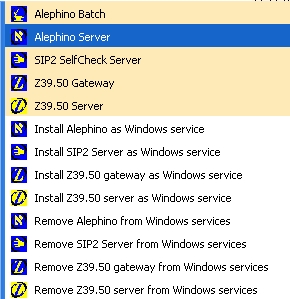
The program group of the Alephino server created by setup contains the following entries:

Alephino server program group

Since WindowsNT all the Alephino components except the batch utility "adm_batch.exe" can be operated as a so-called service. This means that the programs don’t run in a console window but work in the background. This operating mode requires an initialization that introduces the new service to the ServiceControlManager (SCM).

Procedure:
(Similar configuration variations for the HTTP server APACHE are located in its program group.)

Please note
:

While the Alephino server (resp. the Alephino Z39.50 Gateway, the Alephino Z39.50 Server ...) is installed as service, they cannot be operated as console application. Starting the server via the corresponding link on the desktop or in the group of programs doesn’t work any longer! Should you want to run the programs as console application again, delete the service from the SCM by calling up Deinstall Alephino as Service (resp. Deinstall Z39.50 Gateway as Service, Deinstall Z39.50 Server as Service ...). For this, administrator privileges are required. After a successfull deinstallation the corresponding entry disappears from the list of services.
The Alephino service generates entries in the Windows event logs for diagnostics purposes. The event logs are located under the category Application. Protocol entries are generated upon starting and shutting down and when errors occur.


Integrating Alephino in the boot process under Linux

If you want to automatically integrate the Alephino server in the system start (Boot) and end (Shutdown), please proceed as follows:
(these instructions apply to the Linux distributions of S.u.S.E. / Novell and RedHat)

  1. Change into Alephino subdirectory bin.

  2. If your system is S.u.S.E / Novell Linux, just rename file alephino.rc.suse into alephino.rc:
    mv alephino.rc.suse alephino.rc
    Alternatively use script file alephino.rc.debian which was also created during setup. This is always suitable for all Unix/Linux derivates:
    mv alephino.rc.debian alephino.rc

  3. Set execute permission to script file alephino.rc:
    chmod +x alephino.rc

  4. Log in as root.

  5. Create file /etc/init.d/alephino, i.e.:
    #!/bin/sh

    # chkconfig: 2345 98 93
    # description: Alephino 5.0 Server

    /bin/su alephino -c "cd /work/alephino/bin; nohup ./alephino.rc $1"
    exit $?

  6. Set executive permission to script file alephino:
    chmod +x alephino

  7. Create symbolic links to runlevel subdirectories with the following command:
    chkconfig --add alephino

  8. Check the startup-script in directory /etc/init.d:
    ./alephino start  
    resp.
    ./alephino stop

  9. Eventually activate the service:
    chkconfig alephino on


The next time when you start the system your Alephino server should now also be started; in the course of the boot process you get e.g. the messages:
Starting Alephino 5.0 Server                   done

If you use Debian or its derivates (Ubuntu, Kubuntu ...), the proceeding is a bit different.
Steps to be performed devating from the above tutorial are as follows:

  1. Create file /etc/init.d/alephino, i.e.:
    #!/bin/sh
    ### BEGIN INIT INFO
    # Provides:          alephino
    # Required-Start:    $local_fs $network $syslog
    # Required-Stop:     $local_fs $network $syslog
    # Default-Start:     2 3 4 5
    # Default-Stop:      0 1 6
    # Short-Description: Start/stop ExLibris alephino service
    ### END INIT INFO

    /bin/su alephino -c "cd /work/alephino/bin; nohup ./alephino.rc $1"
    exit $?

  2. Set executive permission to script file alephino:
    chmod +x alephino

  3. Create symbolic links to runlevel subdirectories with the following command:
    update-rc.d alephino defaults

  4. Check the startup-script in directory /etc/init.d:
    ./alephino start  
    bzw.
    ./alephino stop


The output of the Alephino server will be redirected to file ../temp/alephino.out. If your Alephino server does not start, you might find here a corresponding error message.


Administrating Alephino services via Web

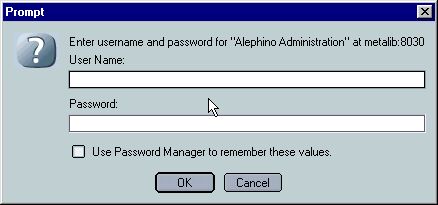
Using the Alephino administration module you can run several services like database backup and -recovery, processing tables and parameters, defining staff users and their permissions and much more. Furthermore you've the opportunity to start the Alephino services via the Web-interface. This is on the one hand very convenient because the user doesn't need to know anything about the Unix command line syntax, but on the other hand it may cause several problems regarding the system security. This applies in particular to systems which are accessable via the internet.
Our recommendation in these cases is to at least use the Apache authorization utilities for critical Alephino services. The following chapter will show you a way to create a simple authorization configuration, the example is an extract from Apache documentation.

1) How to configure a password for Web Administration


2) Starting Alephino Services via Browser

In subdirectory bin of your Alephino installation we provide a simple shell script cgistart and (for Windows) batch file cgistart.bat .